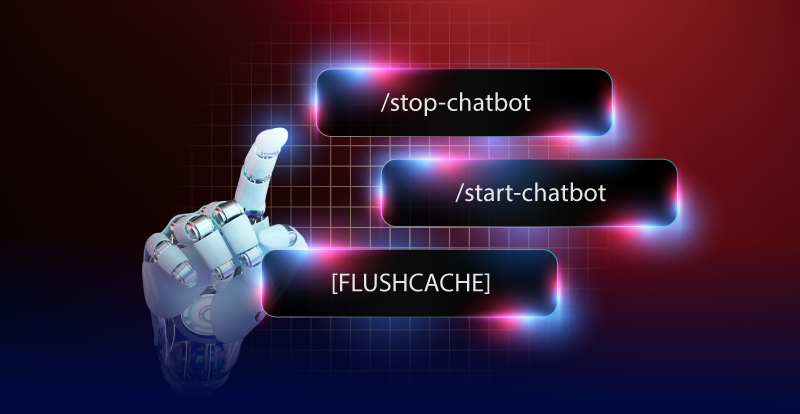
To give you better flexibility when managing conversations, we’ve provided a set of simple commands you can use directly from the chatbot number. These commands allow you to pause, restart, or reset the chatbot whenever needed.
Stop the Chatbot
If you want to take over a conversation manually without the chatbot replying, use the following command:
/stop-chatbot- ✅ This will immediately stop the chatbot from responding.
- ✅ You can continue the conversation with the customer yourself.
Start the Chatbot Again
When you’re ready for the chatbot to handle conversations again, send:
/start-chatbot- ✅ The chatbot will resume and continue assisting with replies automatically.
Flush the Cache (For Testing)
Sometimes, especially during testing, you may want to clear the chatbot’s memory of the previous conversation. Use:
[FLUSHCACHE]- ✅ This command will remove any cached conversation history.
- ✅ Useful for testing new dialogue flows or starting a fresh conversation scenario.
- ✅ Recommended after making updates to the chatbot persona — flushing the cache ensures the latest persona settings are applied and you can resume testing with a clean slate.
[FLUSHAIINFOCACHE]- ✅ This command will reset the chatbot’s cache persona data, instructions, and knowledge files that already in use.
- ✅ Useful when your chatbot is not applying a new uploaded knowledge base or persona updates.
- ✅ Ensure the chatbot starts with a fresh understanding of its persona and knowledge base settings.
Best Practices
- Use /stop-chatbot before jumping into sensitive conversations that need a personal touch.
- Always /start-chatbot again after you finish, to ensure no messages are missed.
- Use [FLUSHCACHE] and [FLUSHAIINFOCACHE] only when necessary for troubleshooting or testing; specifically when changes to the persona or knowledge base are not taking effect immediately.
⚡ With these commands, you can stay in control of your chatbot at all times — balancing automation with personal interaction.